This tutorial has an intermediate level but beware, it will go up to advanced expert level notions. This tutorial is quite long and I'm going to use some Drupal jargon. If I had to redefine all these terms in this tutorial, I'd never finish.
To use a maths analogy, it's a bit like explaining what addition, subtraction, multiplication and division are; relatively quickly. After that it's up to you to do what you want with it and know how to use it.
This tutorial is a bit like a course, then there are the exercises where you take each element you've learnt and practise on it to master it, these are the test sites then come the problems that combine all the concepts, these are the real sites.
Anatomy of a Drupal page
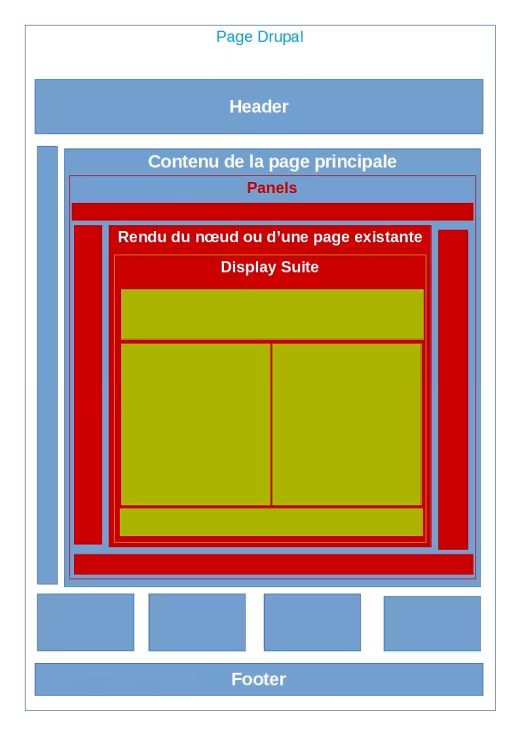
Anatomy of a Drupal page.
In blue: regions of the Drupal theme.
In red: "regions" contributed by Panels and Page Manager.
In Green: "regions" brought by Display Suite, here we're on a node scale.
Note: These regions were drawn at random.
The blocks
Natively, Blocks can be placed in any region of the theme via the page : Structure > Blocks.
All blocks have common configuration options, such as limiting the display to a role, to certain pages, to a content type.
If you have several themes activated, you can choose a different region for the same block.
Limitation: a block can only be assigned to one region.
The "main page content" block
This block is a bit special because this is where the page content will stand out. In other words, if it's a page from a node, it's in this block that the node's information will come out.
It is therefore in this block that the Panels, Page Manager, Display Suite and any other page layout modules will be able to act. It's best to leave it in the region provided for this purpose by the theme you're using.
Panels and Page Manager
How do you create a page that isn't a content page, but a page made up of blocks arranged in a certain way exclusively on that page? Impossible natively (apart from programming).
That's why there's the Page Manager module, which lets you create pages and control their content and layout (independently of Drupal's notion of content).
In addition, variants containing contexts and selection rules can be applied to these pages. A variant is a way of varying the display of a page. Explanations:
- A Page Manager page is identified by a Drupal machine name, but mainly functionally by its URL.
- A page can contain one or more variants, which are all layouts that can be different in many ways:
- division of the "regions" of the page
- page content: with Page Manager a block can be used as many times as desired.
- Each variant can have one or more selection rules, for example what is the user's role.
- Variants are ordered, so the display will be that of the first variant whose selection rules are met.
- Variants can have one or more contexts, for example this will send the identifier of a tag as a parameter to the page without this context having to be in the URL.
Supporting the Page Manager module is the Panels module and its attached modules. Panels provides Page Manager with display layouts, but not only that. Panels also provides a Panels content type. A panel can contain blocks and be put into another panel and therefore used in Page Manager.
Not only can Page Manager create pages from scratch, it can also alter pages made available to it by modules that have provided for its integration, or in the case of Drupal core modules, Page Manager has integrated their pages into its management. For example, content pages can be altered, as can certain administration pages and pages generated by the taxonomy or the contact form page.
Page Manager Existing Pages
Module not installed because the needs of the installation sites do not require such an advanced module.
A weakness quickly overcome by Page Manager is its inability to alter pages such as those generated by Views. To make up for this, the Page Manager Existing Pages module provides access to these pages.
Nodes (and more generally entities)
View modes
When you edit a content type, you have the "Manage fields" and "Manage view" tabs. In "Manage view", on the "default" view mode, you can choose which view mode you want to be able to display differently from the default view.
"Full content", "Teaser", ... these are all view modes, display modes, they allow you to choose which field to show or not, and in what way with the field formatters.
Display Suite
Display Suite overcomes the weaknesses of native display management and view modes by enabling:
- Create other view modes from the Drupal interface.
- In view modes a more complex display: no longer limited to one column.
- To give access to the title and other "fields" to customize their display.
- To create extrafields from the interface.
What is an extrafield? An extrafield is a "field" that exists solely for display purposes. That is, it will use data from other fields in order to display them in a very specific way.
An extrafield can also come from a display, a view...
The use of extrafields is something quite (not to say very) advanced.
Views
This module could be the subject of a tutorial (is already the subject of hundreds of thousands of tutorials on the web...) in its own right on this site. The problem is that the possibilities of this module are vast (almost infinite) and it can be used to do anything and everything if you know how to use it. Here's a brief overview of its possibilities.
Views allows you to make database queries and control the display of the results of these queries.
In a view proper, you can put as many "Displays" as you need, so you can do groupings, everything about a particular type of content in a single view for example.
For each widget, you can (definitively) choose a display in the form of:
- Block
- Page
- Attached file (the English version attachement is better)
- Feeds: RSS, iCal, etc.
- ....
For certain displays, you can then choose a display format in the form of:
- Table
- List: unformatted and HTML
- Jump menu: block that will be a kind of menu
- Grid
- Adaptive grid (Views Fluid Grid)
- Slideshow (Views Slideshow, Flexslider, Dynamic Dysplay Block)
- Calendar (Calendar)
- ....
Views options:
- Filter query results
- Sort query results
- View access control
- Caching
- Context usage
- Table join (relationship)
- .....
In other words: endless possibilities.
Views provides default unactivated views that you can take inspiration from to understand how it works. In particular, it's handy to take inspiration from the glossary view to see how to make one (hint: there's a checkbox option that's very well hidden...)
Image formats/styles
Image styles or image formats are suites of image manipulation effects managed by Drupal; they thus enable an image sent to the site to be displayed in different ways depending on its location on the site. For example, reduced in size for search results, enlarged for highlighting, etc.
Some modules provide their own image formats.
Recommendations:
- Don't use an excessive number of image formats, the more different image formats you have, the more complicated it will be to keep the site homogeneous and the visitor will be confused.
- Don't make lots of image formats that look the same and differ only slightly in size. It's better to make image formats with clearly marked sizes, one style per order of size. Follow the example of the basic styles provided. This will make it easier for you to find your way around, especially if you're doing CSS that will affect the images behind it.
- Use between 5 and 10 image formats maximum on your site. Beyond that, it may be a sign of a poorly thought-out design and hello gasworks.
Interactions
And now is when the fun starts. Because seeing Panels, Display Suite, Views, separately, already gives you quite a few possibilities, but where it gets crunchy is when you combine it all.
Examples:
- Configure a view to display content rendered in a display mode managed by Display Suite, this content will be displayed as a block and then this block will be placed on the page via Page Manager.
- You want to list different types of content on the same page, impossible to use the fields directly because they don't all have the same fields. Go through the view modes, choose to render the content according to the same view mode and in this view mode, choose a different display for each type of content.
Please note that Views, Display Suite, Panels and Page Manager like each other. and that it's thus easy to switch to a view a context via Page Manager (easy in the sense, you can do that in the interface, afterwards you have to know how to find the options you want).
Recommendation
This gives you a huge number of options for controlling the display on your site. However, I recommend that you take care to keep as much consistency as possible so that you can find your way around, but above all so that your successors can find their way around.
Example: If I make views based on view modes, I might as well have as many views as possible adopt this logic.